
Using Consensus to get medical questions answered accurately
This article was written for Western Sydney Publishing and published in October 2025.
My daughter was frustrated that Windows only stores one clipboard item and asked whether tools allow multiple entries. For decades, Cut, Copy, and Paste have been crucial for moving text. Yet Windows’ clipboard had an evident weakness: it could hold only one item at a time.
Windows 11 introduced Clipboard History, allowing users to save up to 25 items and sync them across devices. However, it’s not enabled by default. When I discovered it, my workflow improved. Now, I keep 10 daily items ready to paste.
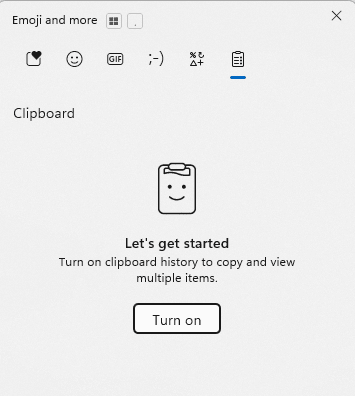
There are a couple of ways to activate it. The easiest way is to use a shortcut Key.
- Press Windows + V.
- If Clipboard History is off, you’ll see a prompt. (see picture)
- Click Turn on.
It can also be enabled by going to
- Start è Settings è System è Clipboard è Clipboard History è On
Another thing I would suggest is syncing the Clipboard History across devices. Unfortunately, there is no shortcut for this.
- Start è Settings è System è Clipboard è Clipboard History across your devices è On
To activate the Clipboard History, you press Windows + V and click on the item you want to paste.
Windows 11’s Clipboard History allows users to:
- Store up to 25 items (text, HTML, small images).
- Pin frequently used snippets for persistence.
- Sync across devices using a Microsoft account.
- Clear history or disable sync for privacy.
While the Clipboard History tool doesn’t have all the bells and whistles that commercial tools offer, it will work just fine for most people. The tool also allows you to permanently pin items in your clipboard history. It also has tabs for Emojis, GIFs and Kaomojis (text-based emoticons). Select a tab, scroll through the sizable selection, then paste it into your document.
If you do need more features, search online. Some of these tools include ClipClip, Ditto, CopyQ, Clipboard Master and Clipdiary. I have used ClipClip before and found it easy and intuitive. It allows you to copy multiple pieces of text, images, and even certain file types to your clipboard. After copying, you can easily review your saved clippings and organise them by assigning titles and sorting them into folders.
A final suggestion: If you enable cloud sync, assume contents may traverse a third-party service. Avoid copying or storing passwords and important data.
Comments are closed